如何制作Ubuntu的USB启动盘
这个周末新入手一台INTEL的NUC主机,八代i3版本,另外新购8G DDR4内存 + 256G NVME SSD硬盘.
本次采购是为了将网站改造为VPS + 本地Linux Server的模式,为此需要为NUC主机安装Ubuntu的Server版本。
Step 0: 准备工作
- An Intel NUC with BIOS updated to the latest version (update instructions)
- A USB 2.0 or 3.0 flash drive (4GB minimum for Dawson Canyon NUCs, 2GB for older generations)
- A USB keyboard and a mouse
- A monitor with an HDMI interface
- An HDMI cable
- A network connection with Internet access
Step 1:下载Ubuntu的ISO镜像文件
- Browser打开Ubuntu官方网站
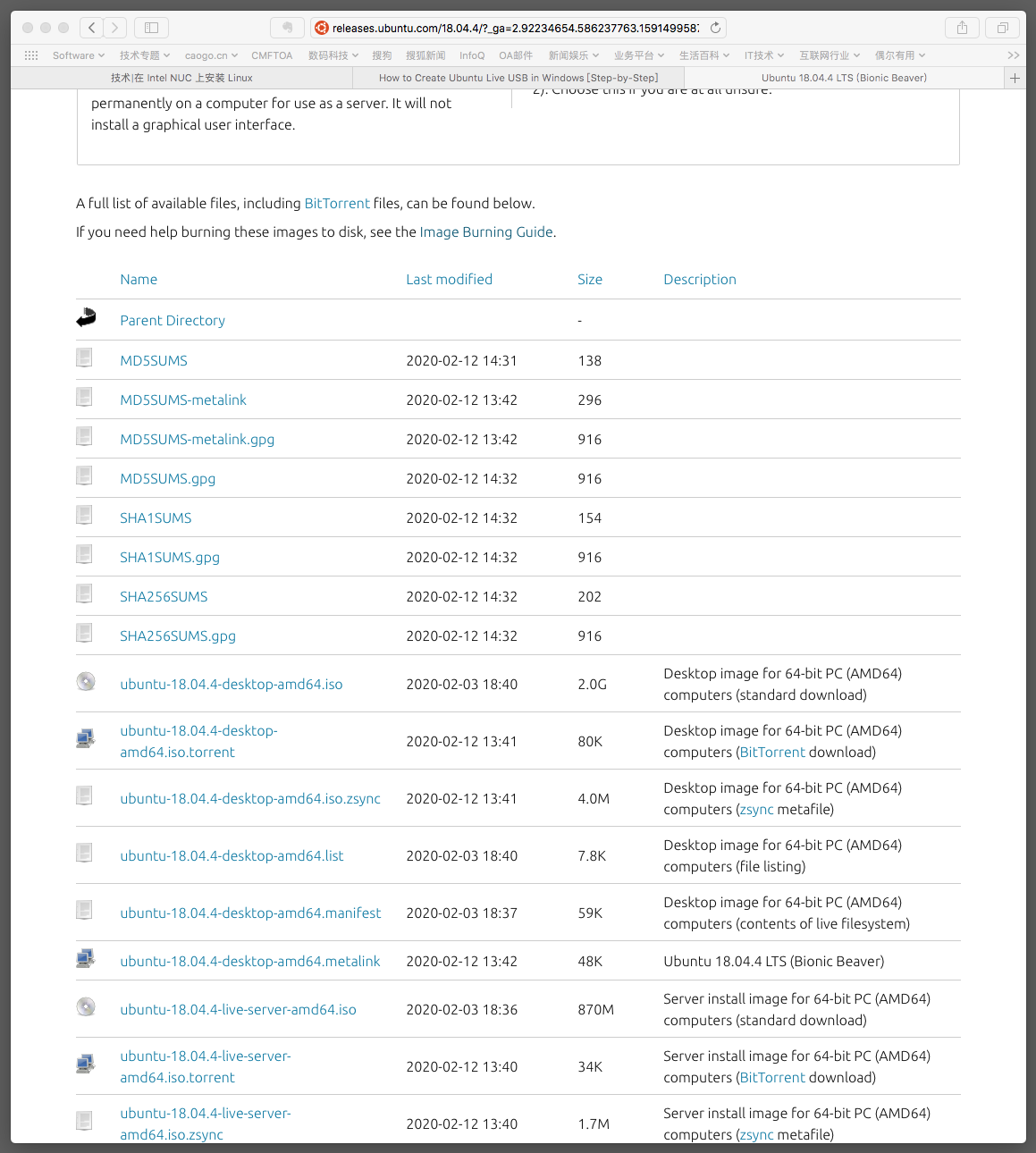
- 寻找合适版本的ISO映像文件并下载,推荐采用BT下载方式。
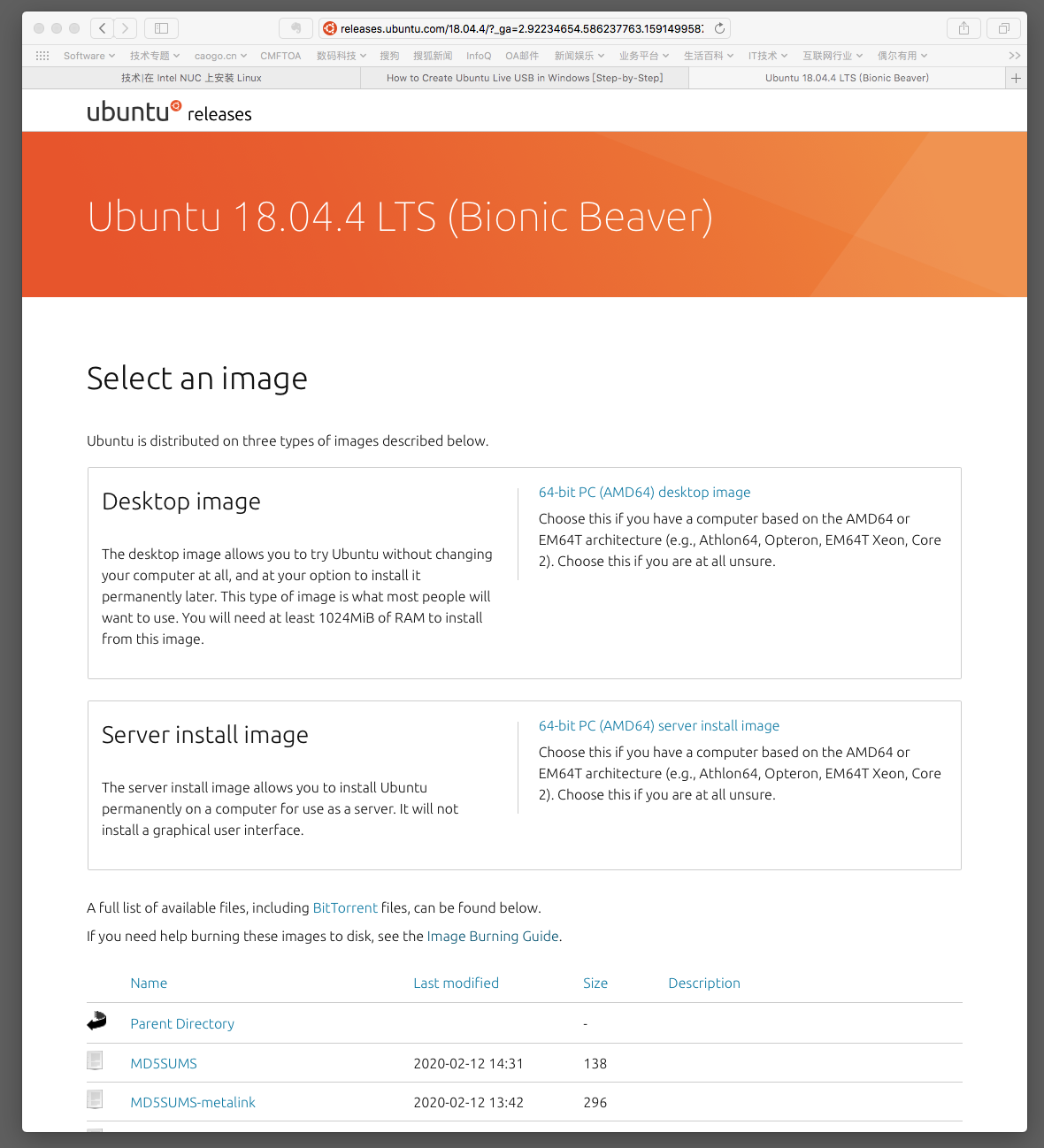
目前最新稳定版是Ubuntu 20,但从兼容性考虑,本次下载的是LTE长期稳定版v18.4.4
可用版本分为Desktop和Server两种版本,本次选用Sever版本(大约900M,桌面版超过2G)
在v16以前,除了主流的64位amd64 版本,还有32位的i386版本
Step 2:格式化U盘
- 在Mac中打开
应用->其它->磁盘工具 - 选择U盘,然后擦除。千万别选错了Mac的硬盘啊!!
- 选择格式: MS-DOS (FAT),并执行“擦除”
Step 3: 下载并安装Etcher工具
用于格式化和创建可引导USB闪存盘的工具主要有:Etcher 和 Rufus
Ether是Balena公司提供的开源软件,最大的优点是可以跨平台使用
- Browser打开Ether下载页面,选择mac版本并下载
- 打开DMG文件,并根据提示信息完成安装,过程中可能出现需要允许安装第三方软件的告警提示
Step 4: Etcher制作USB启动盘
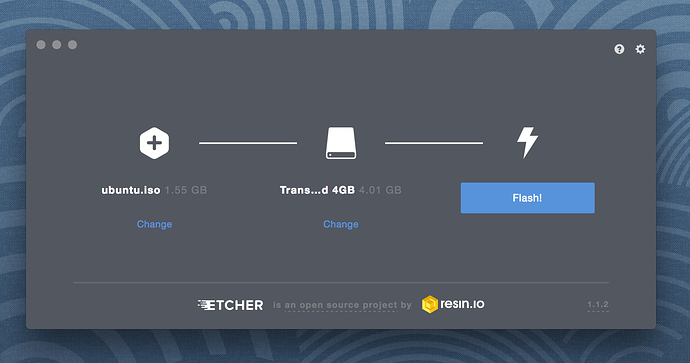
- 选择ISO镜像文件
- 选择USB驱动器,不要搞错了硬盘
- 写入USB盘,大概需要十分钟后,大功告成!
疑难杂症:如何恢复USB启动盘的硬盘分区
制作过Ubuntu iso的U盘会变成只有几M的空间,格式化也没有用,原因是Etcher修改了硬盘分区表。
解决办法是,在Windows下搜索运行diskpart软件,参考命令行是:
1
2
3
4
5
DISKPART> list disk
DISKPART> select disk 2 (具体选1还是2要根据实际情况,小心操作!!)
DISKPART> clean
DISKPART> create partition primary
DISKPART> exit
而如果在Linux下,那就更简单了,用fdisk命令就行。
1
2
3
4
5
6
7
8
9
fdisk -l
列出/dev 下面的所有硬盘设备,例如 /dev/sda, /dev/sdb, /dev/sdc
fdisk /dev/sdb
选择需要修改的硬盘,按照命令提升处理,大致是:
p 列出分区表
d 删除分区
n 新建分区
w 存盘退出!!!
补充以下,如果在Mac OS上,虽然没有fdisk命令,但是可以用diskutil命令代替
1
2
3
4
5
6
7
8
9
10
11
12
13
14
15
16
17
18
19
20
21
22
23
24
25
26
27
28
29
30
31
32
33
34
35
36
37
38
39
40
41
42
43
44
45
46
47
48
49
50
51
52
53
JiandeiMac:~ sj$ diskutil
Disk Utility Tool
Utility to manage local disks and volumes
Most commands require an administrator or root user

WARNING: Most destructive operations are not prompted

Usage:  diskutil [quiet] <verb> <options>, where <verb> is as follows:

    list                 (List the partitions of a disk)
    info[rmation]        (Get information on a specific disk or partition)
    listFilesystems      (List file systems available for formatting)
    activity             (Continuous log of system-wide disk arbitration)

    u[n]mount            (Unmount a single volume)
    unmountDisk          (Unmount an entire disk (all volumes))
    eject                (Eject a disk)
    mount                (Mount a single volume)
    mountDisk            (Mount an entire disk (all mountable volumes))

    enableJournal        (Enable HFS+ journaling on a mounted HFS+ volume)
    disableJournal       (Disable HFS+ journaling on a mounted HFS+ volume)
    moveJournal          (Move the HFS+ journal onto another volume)
    enableOwnership      (Exact on-disk User/Group IDs on a mounted volume)
    disableOwnership     (Ignore on-disk User/Group IDs on a mounted volume)

    rename[Volume]       (Rename a volume)

    verifyVolume         (Verify the file system data structures of a volume)
    repairVolume         (Repair the file system data structures of a volume)

    verifyDisk           (Verify the components of a partition map of a disk)
    repairDisk           (Repair the components of a partition map of a disk)

    eraseDisk            (Erase an existing disk, removing all volumes)
    eraseVolume          (Erase an existing volume)
    reformat             (Erase an existing volume with same name and type)
    eraseOptical         (Erase optical media (CD/RW, DVD/RW, etc.))
    zeroDisk             (Erase a disk, writing zeros to the media)
    randomDisk           (Erase a disk, writing random data to the media)
    secureErase          (Securely erase a disk or freespace on a volume)

    partitionDisk        ((re)Partition a disk, removing all volumes)
    resizeVolume         (Resize a volume, increasing or decreasing its size)
    splitPartition       (Split an existing partition into two or more)
    mergePartitions      (Combine two or more existing partitions into one)

    appleRAID <verb>     (Perform additional verbs related to AppleRAID)
    coreStorage <verb>   (Perform additional verbs related to CoreStorage)
    apfs <verb>          (Perform additional verbs related to APFS)

diskutil <verb> with no options will provide help on that verb